
How to Remove a User from the Back Office
You can remove a user’s access to the back office by deactivating their account. Deactivated users can no longer log in but remain stored in the system.
How to Remove a User
1
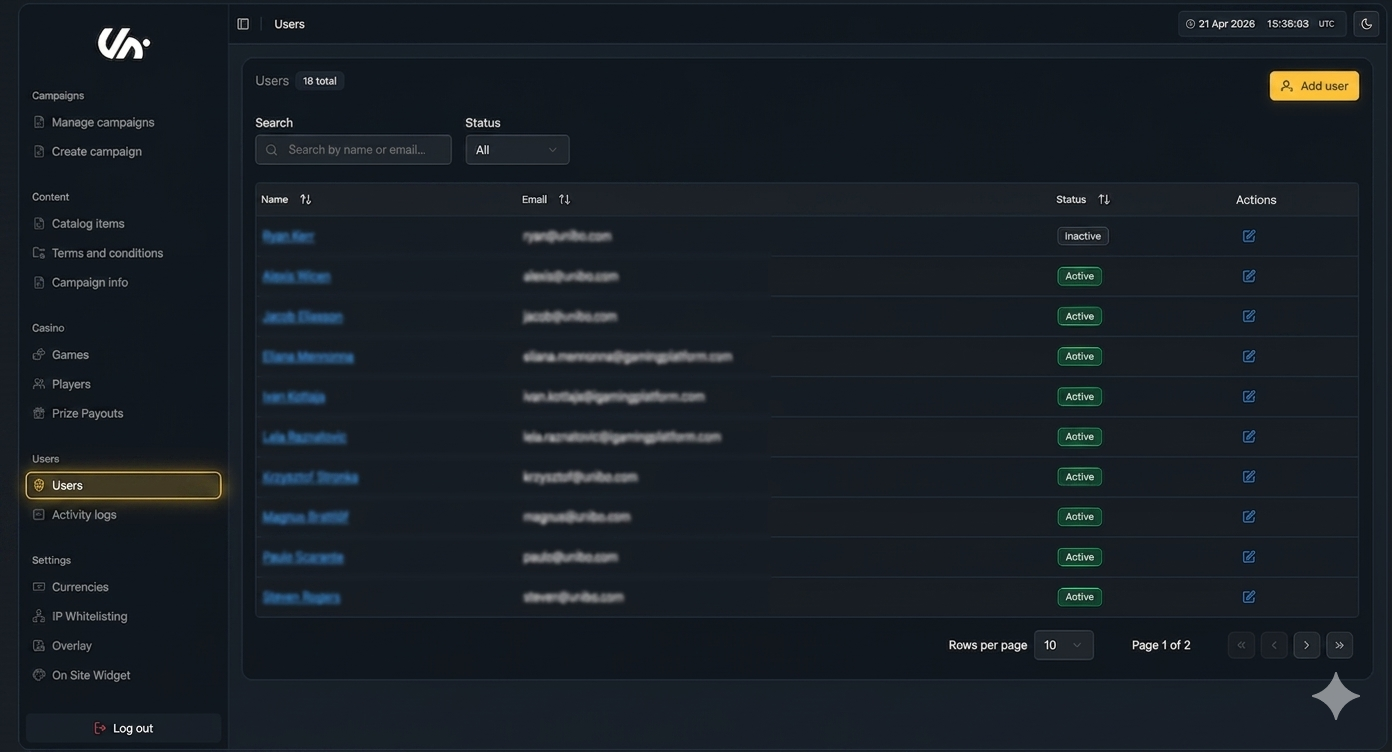
Go to the Users page
Navigate to the Users page under the User section in the main menu to access all user accounts.
2
Select the user
From the list, click on the user you want to remove to open their profile.
3
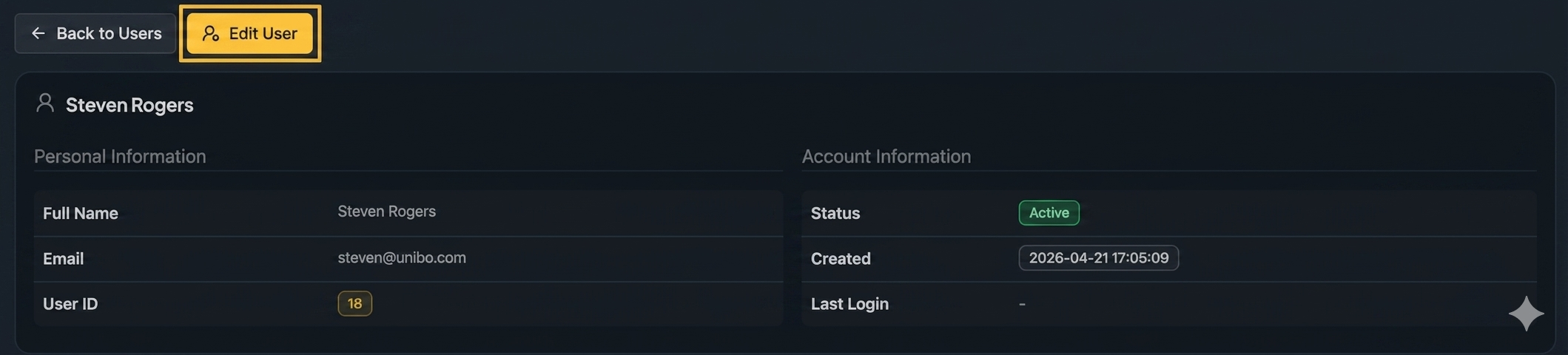
Edit user settings
Click Edit to access the user’s account settings.
4
Deactivate the user
Select Deactivate User to remove their access to the system.
What happens next
The user immediately loses access to the back office.
They will no longer be able to log in.
The account remains in the system but is inactive.
Related Topics
For step-by-step guidance on adding users, see How to Add a User to the Back Office
Was this helpful?
Was this helpful?