
How to Add Content to a Campaign
Adding content to a campaign ensures that players see clear, engaging, and accurate information within the campaign overlay. This guide explains how to configure titles, detailed info, images, and dynamic content for your campaigns.
Campaign Title
Under the Content step, you can add the title of the campaign. This is the text players will see in the campaign overlay.
Titles can be language-specific; if no translation is added, the English title is used.
Campaign Info
The Campaign Info is the detailed text players see when they click the information icon in the overlay. Use this field to write a descriptive and engaging message that clearly communicates the campaign details to players.
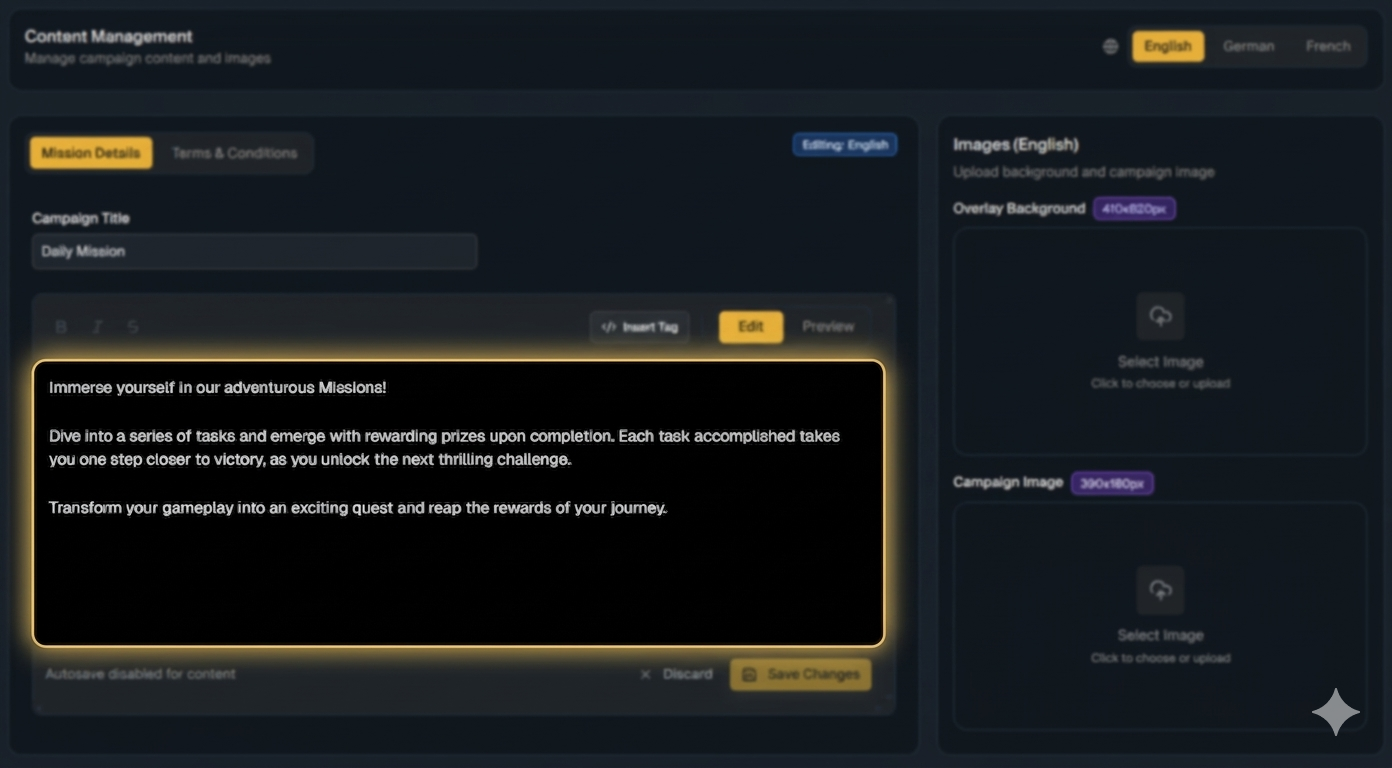
Autosave is disabled for Campaign Info. Make sure to click “Save Changes.”
Campaign Info can be language-specific; if no translation is added, the English language is used.
Terms & Conditions
The Terms & Conditions are the rules and requirements players must follow to participate in the campaign. Use this field to clearly communicate all important restrictions, eligibility criteria, and wagering requirements so players understand how to participate correctly.
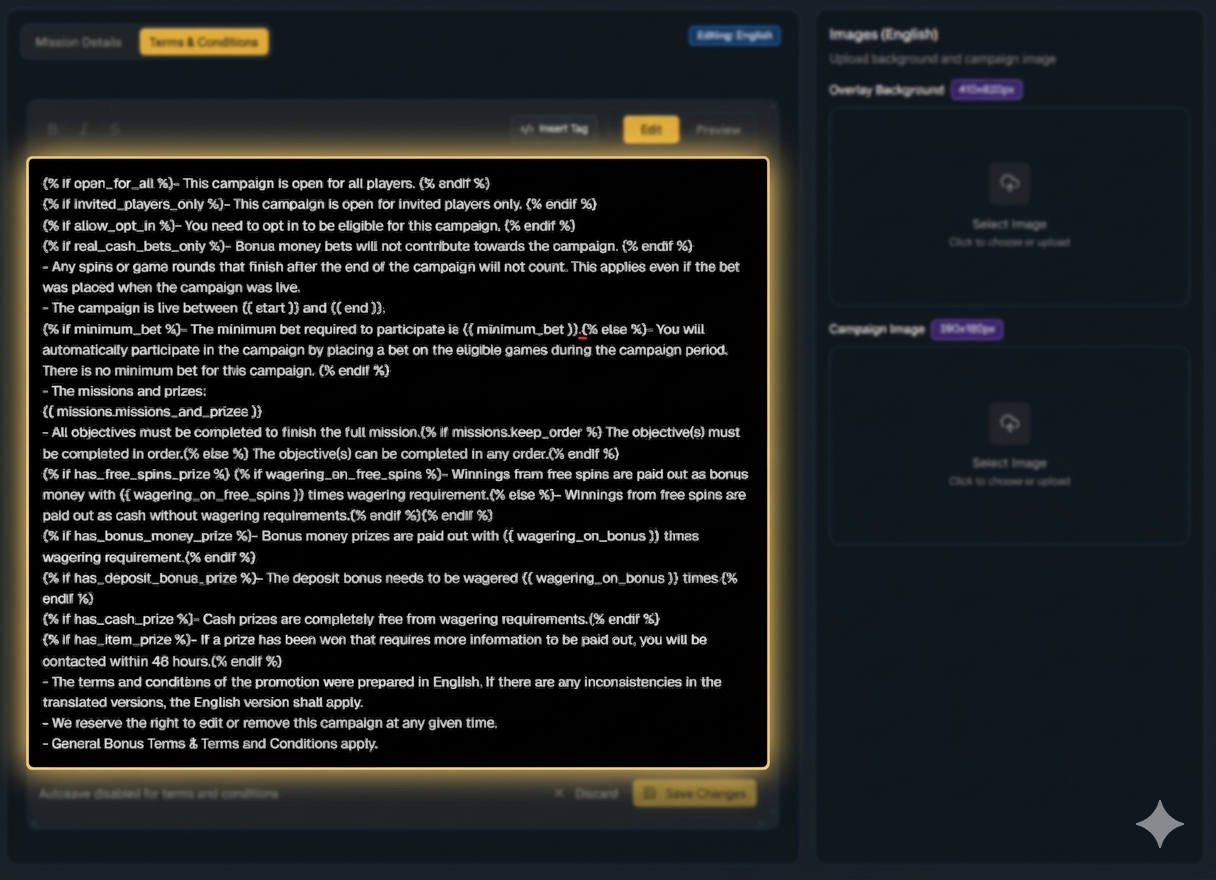
Autosave is disabled for Terms & Conditions. Make sure to click “Save Changes.”
Terms and Conditions can be language-specific; if no translation is added, the English language is used.
Image Selection
Use this section to upload background and campaign images that will be available for selection in your campaigns.
Browse Files
Click the Browse Files button to upload new images to the back office.
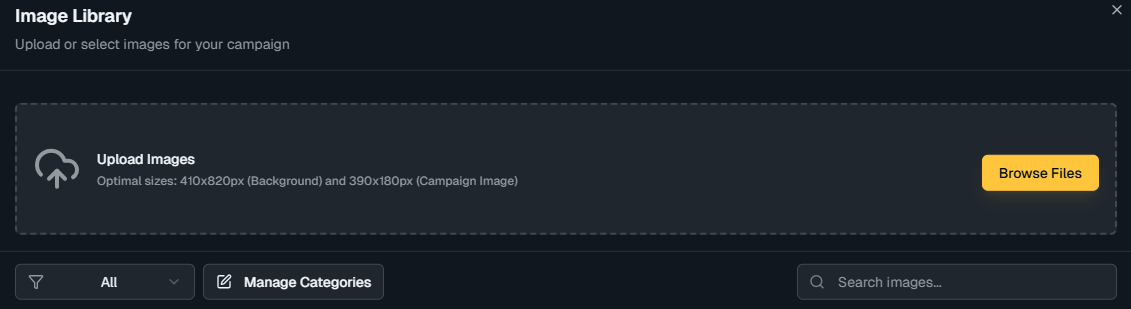
Upload Images
Once uploaded, the images will be available to select when creating or editing campaigns.
In-Game Widget
Once the campaign is active, the images will appear in the overlay as the background and main visual, while the Campaign Info and Terms and Conditions are shown when players click the info button.
Images can be language-specific; if not provided, the English language image is used.
Recommended sizes ensure the overlay displays correctly across devices.
Campaign Background: 410x820px
Campaign Image: 390x180px
Related Topics
Learn more in Content Templates, where you can customise the text the system uses to automatically fill Campaign Info and Terms and Conditions.
.